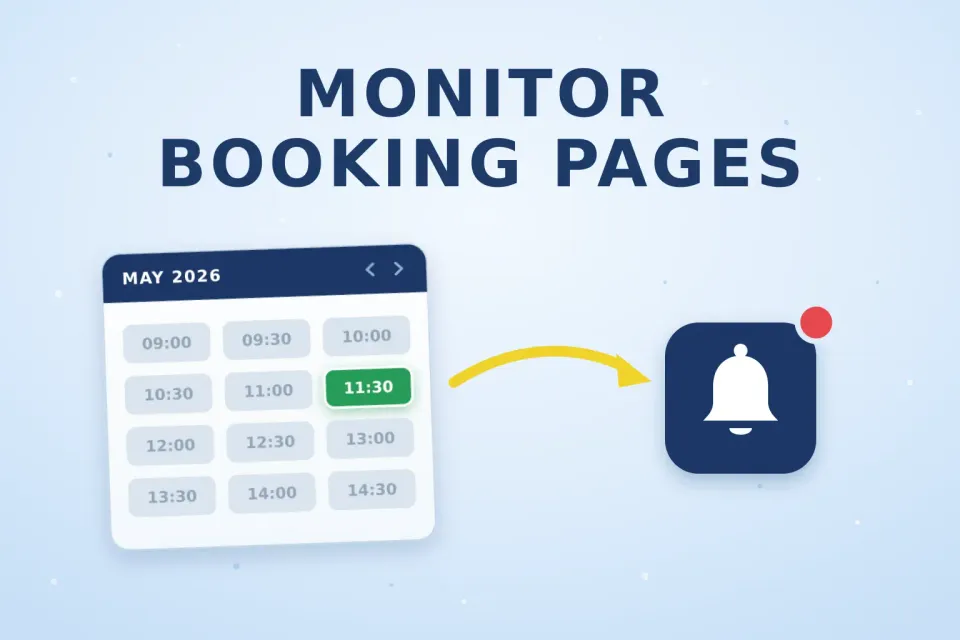


Monitoring a booking page works the same way no matter what is being booked. You capture a baseline of the page that lists availability, re-check that page on a schedule, and get alerted the moment it differs from the baseline. Whether the page shows doctor’s appointments, campsite pitches, restaurant tables or consulate interview slots, the mechanic does not change — only the URL does.
This guide walks through setting that up in Sken.io, choosing a sensible check interval, and recognising the booking pages that cannot be monitored this way.
Why Booking Pages Are Worth Watching
Most booking systems do not hold a waiting list. Slots appear for two reasons — someone cancels, or the operator releases a new batch — and in both cases the page simply updates without telling anyone. First come, first served.
That turns availability into a refresh race. People sit on a calendar page pressing F5, or check five times a day and still miss the window. A monitoring job does the refreshing for you and sends the alert within your chosen interval of the change appearing.
What You Can Monitor This Way
Anything with a public page that shows availability. A few common cases and where the useful signal usually sits:
| What you are waiting for | What to select on the page | Typical interval |
|---|---|---|
| Doctor or clinic appointment | The slot list or calendar for one location | 15–60 min |
| Restaurant table | The results area for a fixed date and party size | 15–60 min |
| Campsite or national park pitch | The availability grid for your date range | 1–6 hours |
| Visa or consulate appointment | The "next available date" text | 5–15 min |
| Driving test or vehicle inspection | The centre’s calendar for your region | 1–6 hours |
| Event tickets or released seats | The ticket category block or "sold out" label | 1–15 min |
| Course or class enrolment | The "places remaining" counter | Daily |
Setting It Up in Four Steps
1. Find the page that actually shows availability
This is the step people get wrong, and it decides whether the whole job works. The homepage of a booking site rarely changes. The page you want is the one you land on after you have applied your filters — the specific clinic, the specific date range, the party size, the region.
Run the search manually first, get to the page listing the slots, then copy that URL out of the address bar. If the URL still looks identical to the one you started from, the site is loading results without changing the address — see the limitations section below.
2. Enter the URL and load the page
Paste the URL into the field on the Sken.io homepage and press Go. The page is loaded and rendered so you can work with it exactly as a visitor sees it.
3. Select only the area that matters
Select the smallest region of the page that contains the availability information — the slot list, the calendar grid, the "next available" line. You can select an area, a single element, or the whole page, but on booking sites the whole page is almost always the wrong choice: session counters, rotating banners and "12 people are viewing this" widgets will fire alerts on every check.
If the page throws a cookie banner or an overlay over the content you want, our guide on dealing with popups and overlays covers how to get past it.
4. Set the interval and where the alert goes
Pick how often the check runs — down to every minute — or build a custom weekly schedule if slots are only ever released during office hours. Then choose where the notification lands. Alongside email, Sken.io can push alerts to Slack, Discord, Google Chat, Zapier, or your own webhook, which is the useful one if you want to trigger something automatically rather than read a message.
Content or Visual Detection?
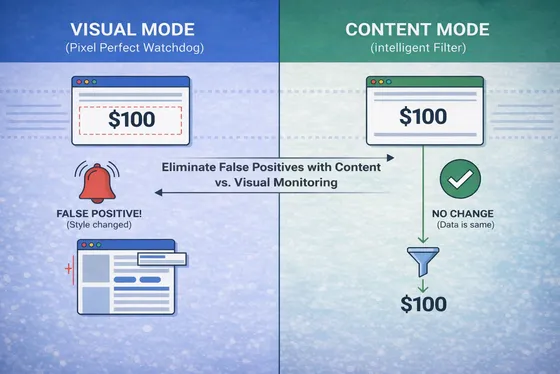
For most booking pages, content detection is the right mode. Availability is usually expressed as text — a list of times, a date, a counter — and comparing extracted text ignores the cosmetic churn that would otherwise trip a pixel comparison.
Visual detection earns its place on calendar widgets where availability is encoded as colour rather than words: a grid where free days turn green and the underlying text never changes. In that case the pixels are the only signal there is.
The full trade-off, and how to stop each mode from producing false positives, is covered in Content vs. Visual: How to Eliminate False Positives.
Choosing an Interval Without Burning Your Checks
Every check counts against your monthly allowance, so the interval is a budget decision as much as a speed one. The arithmetic for a single job:
| Interval | Checks per month (one job) | Fits in |
|---|---|---|
| Every minute | 43,200 | Short bursts only |
| Every 15 minutes | 2,880 | Standard (3,000/mo) |
| Hourly | 720 | Basic (500/mo) with a schedule |
| Once a day | 30 | Any plan |
Two things follow from that table. First, a one-minute interval is something you switch on for a known release window, not something you leave running for a month. Second, a custom schedule is often worth more than a shorter interval: checking every 10 minutes between 08:00 and 18:00 on weekdays costs roughly 1,300 checks a month, while checking every 10 minutes around the clock costs over 4,300 — for slots that are only ever released during business hours.
When a Booking Page Cannot Be Monitored
Being straight about this saves you an afternoon. A booking page is not a good candidate when:
- The availability sits behind a login. If you have to authenticate to see slots, a monitoring service loading the page anonymously will not see them either.
- Results never get their own URL. Some systems load availability only after you click through a multi-step wizard, with the address bar never changing. There is no stable URL to point a job at.
- The page is CAPTCHA-protected. Deliberately so — the site does not want automated access, and that should be respected.
- Everything on the page changes on every load. Session IDs, countdown timers and rotating promotions will produce constant alerts. Narrowing the selected area usually fixes this; if it does not, the page is not monitorable in a useful way.
Practical Tips

Create one job per specific search rather than one broad job. Three jobs for three nearby clinics tell you which one opened up; one job covering a page that lists all three only tells you that something moved.
Sken.io keeps up to 12 snapshots per job, and the compare view highlights exactly what changed. After a week you can usually see the pattern — many booking systems release inventory at the same hour every day — and set your schedule around it.
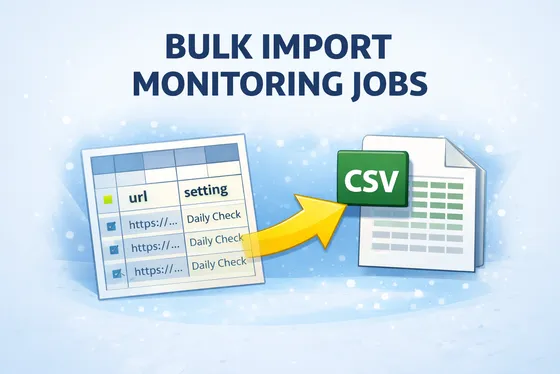
If you are tracking a dozen locations at once, do not build them by hand. Import them from a CSV file — one row per URL, and the whole set is created in one go.
Match the interval to how fast slots actually disappear, not to how much you want one. If a cancelled campsite pitch typically stays free for a day, hourly is plenty — and it costs sixty times less than checking every minute.
The Same Pattern, Everywhere Else
Nothing here is specific to appointments. The same three decisions — find the URL that shows the state you care about, select the smallest area that carries the signal, pick an interval that matches how fast that state changes — apply to new property listings, restocked products, competitor price changes and job postings alike. Booking pages are simply the case where being first matters most.
You can try it without paying: the 14-day trial includes 140 checks and every feature, with no card required. If you need more, plans start at €3 a month for 500 checks — the details are on the pricing page, and you can always reach us at info@sken.io.